CAN Bit Timing & CAN Settings
The CAN Bus bit timing settings may be calculated and controlled through various screens on the CAN Bus Debugger tool. These screens are only relevant for CAN 2.0A/B nominal bit timing. CAN FD bit timing settings must be set through the gs_usb interface via a PC (see USB Mode). The main CAN settings screen is shown below.
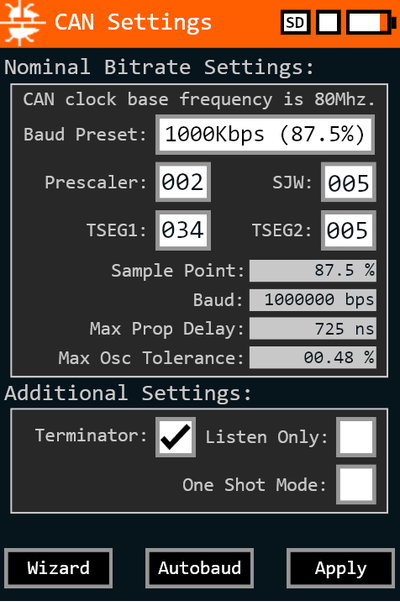
On this screen, select a Baud Preset or enter values for the prescaler, SJW, and TSEG fields. For details on these parameters, refer to the online CAN bit timing calculator. The tool automatically updates the calculated sample point, bit rate, propagation delay, and oscillator tolerance as you adjust these values.
This screen provides three checkbox settings:
- Terminator – Enable the integrated 120Ω terminator.
- Listen only – Activate listen-only mode (the tool does not participate or acknowledge frames on the bus).
- One-shot mode – Prevent retransmission of frames.
Baud Wizard
Use the Baud Wizard screen to automatically configure CAN nominal bit timing settings using a desired baud rate and sample point. The tool calculates the optimal prescaler, SJW, and TSEG values, and displays the resulting sample point, bit rate, propagation delay, and oscillator tolerance.

Autobaud
Use the Autobaud screen to automatically configure CAN timing settings to match the communication on a connected bus. The tool applies a sample point of 87.5% for all calculated timing settings. Ensure active communication is present on the bus for detection. This function is available for CAN 2.0A/B only.
To begin the autobaud process, use the 'Start' button and wait for the tool to detect the bit rate. If successful, the tool displays a confirmation message and automatically updates and applies the timing settings.
